You can import data in bulk for your team to a Games or general contacts in one go using a .CSV or .XLS file.
You can add new people or if you already have team members (athletes and officials) from a previous Games or existing contacts in Plus 1% you can import additional information and match to existing team members and contacts within Plus 1% using the Data Upload tool.
You can import;
- Team Members to a Specific Games
- Contacts
- Organisations
- A Competition Schedule
- Sport Entries
- Games Results
- Related Contacts
- Travel Itineraries with Arrival and Departure Details
- Outfitting Garment Sizes
Import Team Members to a Specific Games
The following process will enable you to upload team members into the Games of your choice using an Excel spreadsheet. You can upload existing team members or contacts into a new Games or you can create new team members through the upload process. If you have existing data in Plus 1% and you upload blank fields from the Excel sheet then the the data in Plus 1% will not be overwritten with blank fields. A word of warning however, if data is uploaded and not matched to existing contacts in Plus 1% then duplicate records can be created which are difficult to remove. The smallest of spelling mistakes in a persons name can mean a contact is not matched and a duplicate record will be created.
Go to the Games You Want to Upload to & then Download the Excel Template
The Excel file should automatically open in Microsoft Excel when downloaded from Plus 1%.
Populating the Excel Template
Plus 1% has a number of mandatory fields and the Excel sheet MUST match the data fields from Plus 1%. Many of the Plus 1%fields are set under System and in Systems Tables and various other customised fields such as country names. For example, in column I in the Excel sheet above the country name of “New Zealand” name MUST match the country name exactly as it is defined in Plus 1%. If it does not match the name in Plus 1% an error message will be given.
TIP: Columns can be hidden (but not deleted) to simplify the spreadsheet.
Make Sure the Function and Selection Status Fields are Populated
It is critical to populate columns CQ and CX with the Function and Selection Status of each person as defined in Plus 1%.
Not every field in the spreadsheet needs to be populated. However the following fields must be completed;
- First Name
- Last Name
- Gender
- Function
- Sport
- Discipline
- Selection Status
Other Recommended Fields:
- Pref. Family Name
- Pref. Given Name
Once the excel spreadsheet is populated save it as an .XLS file and not as .XLSX
Match Your Spreadsheet to Existing Data to Avoid Duplicates
Before uploading the data Plus 1% will match to contacts in your Plus 1% database.
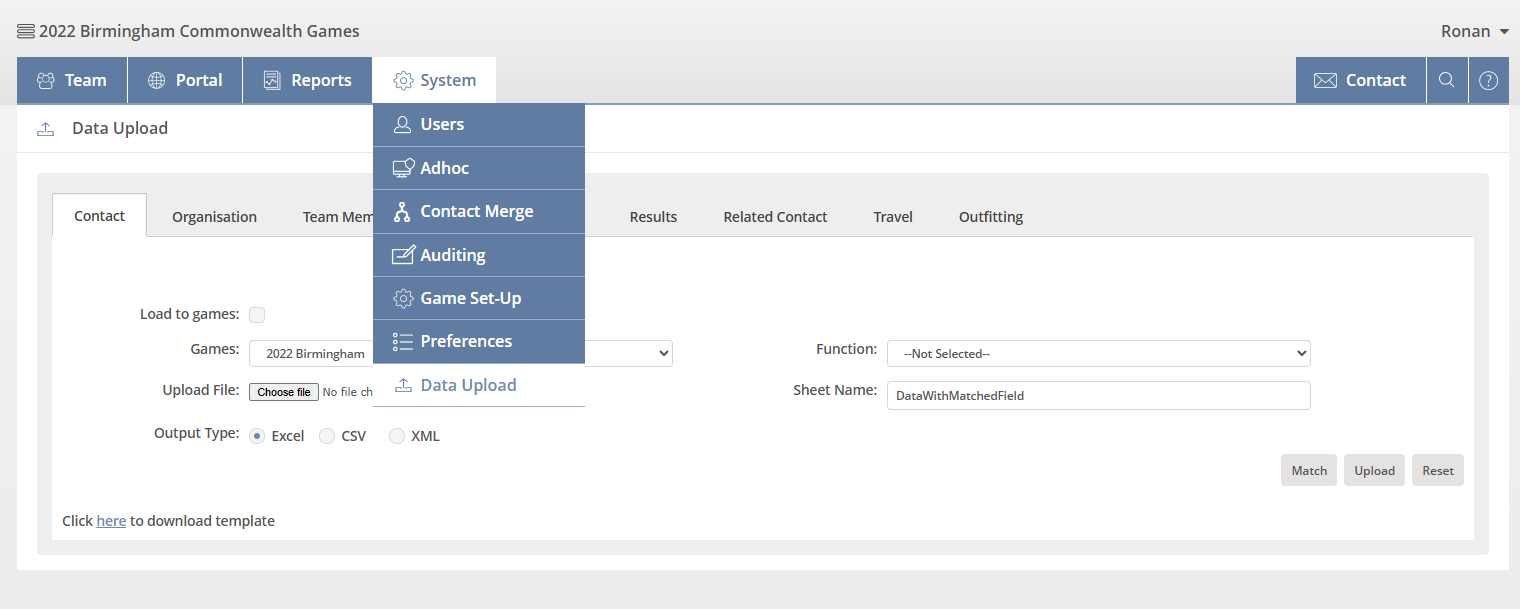
Steps 1 to 3 – Click the browse button, find the excel file for importing and click open. Step 4 will match as best as possible to existing contacts in your Plus 1% database to the import file.
If an error occurs it can be for several reasons including invalid data, changes to the column names or incorrect sheet name.
Step 5 – Plus 1% will return to you an Excel sheet that has attempted to match your data to existing Plus 1% contacts.
Check the Returned Excel Spreadsheet for Matches and Errors
A match record will be returned with the Plus 1% Contact ID. This indicates the record already exists in Plus 1%.
TIP: Don’t assume that the match is a match because you might have 2 people with the same name. Also don’t assume that simply because Plus 1% has not been able to match that a match doesn’t exist – a small spelling mistake or a change of name after marriage can all be reasons why Plus 1% cannot match the names.
At the end of the spreadsheet you will see the match rate and reasons for the match. Plus 1% matches on names, email addresses, Dates of Birth and Sport. There will also be an error column which will indicate all the errors that need to be fixed before the upload will be successful.
Uploading Data After Removing Errors and Matching All Records
Once all the errors have been fixed the data can be uploaded. To upload browse for the file and click Upload. A successful upload will will return a message saying Data upload finished.
 International Zone